---
title: How it works
description: How it works
---
[Skip to content](https://knowledge-base.phobs.net/how-it-works#main-content)
English
Show submenu for translations
Phobs.net
Open main navigation
Close main navigation
- English
Show submenu for translations
- Contact us
Contact us
How can we help you?
- There are no suggestions because the search field is empty.
1. [Phobs Knowledge Base](https://knowledge-base.phobs.net/?hsLang=en)
2. [RezApp](https://knowledge-base.phobs.net/rezapp?hsLang=en)
3. [How it works](https://knowledge-base.phobs.net/rezapp?hsLang=en#how-it-works)
May 29, 2026
# How it works
Reservation application enables the user to make a reservation on behalf of a guest in just a few clicks or to send an offer based on real time availability.
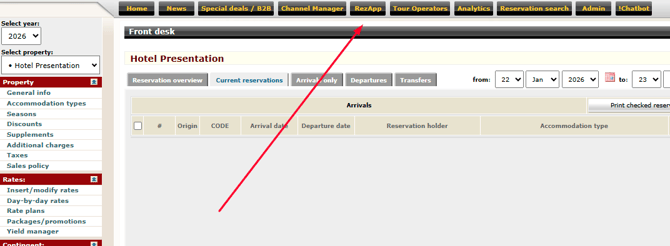
To access the Reservation Application, please log in to the PHOBS Back Office and click on the “RezApp” Module. The Module will open in a separate tab.
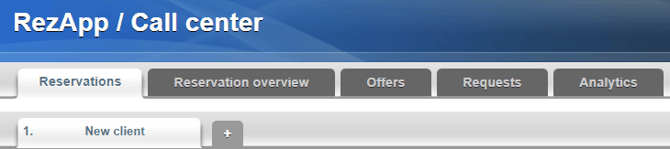
When you enter the Reservation Application, you will be presented with five tabs: Reservations, Reservation overview, Offers, Requests, and Analytics.
- Reservations: In this tab, you create an offer for the guest, which you can either send as an offer or confirm on their behalf by creating a reservation.
- Reservation overview: An overview of all reservations made directly through this module or created from sent offers.
- Offers: A chronological overview of all sent offers.
- Requests (optional): If the Reservation Application is connected to the Request Form on your official website, you have the option to respond to a guest’s request in just a few clicks.\*
- Analytics: Provides an overview and detailed statistics of all sent Offers and created reservations by agent/property over a selected period.
\*Abandonment Cart can also save guest requests.
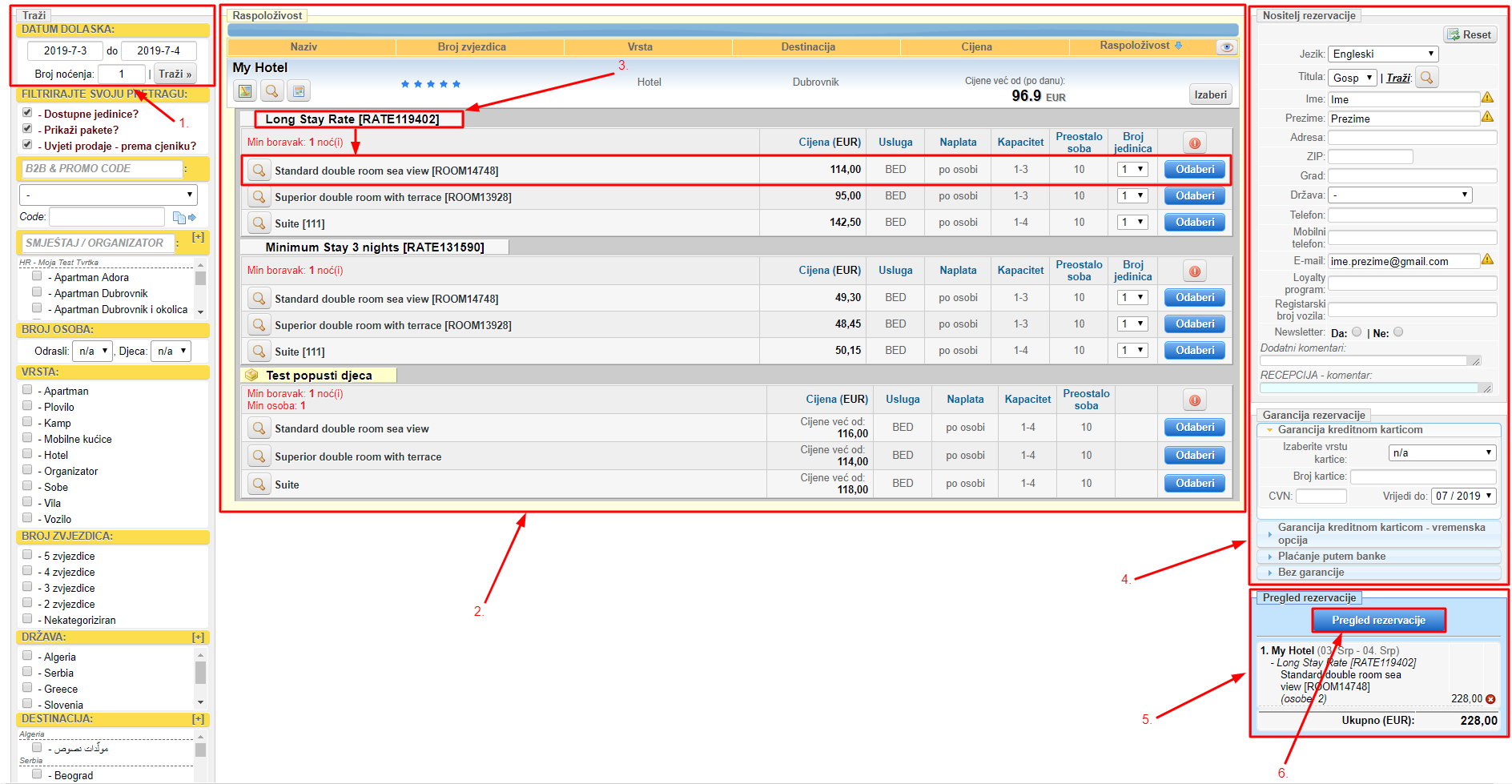
1. Selecting the “Check In/Out” period
2. The offer displays bookable rate plans and rooms available for the period set in the first step.
3. Rateplan name \> Accommodation units – by clicking “Book” the offer is added to the Cart (6.).
4. Guest information – First Name, Last Name, and E-mail address are required fields.
5. Cart – shows the current offer.
6. Offer/Reservation details – review the offer/reservation and proceed to the final step.
in a separate tab.
- [RezApp](https://knowledge-base.phobs.net/rezapp?hsLang=en#main-content)
- [Introduction](https://knowledge-base.phobs.net/rezapp?hsLang=en#introduction)
- [FAQ](https://knowledge-base.phobs.net/rezapp?hsLang=en#faq)
- [How it works](https://knowledge-base.phobs.net/rezapp?hsLang=en#how-it-works)
- [Sending an offer](https://knowledge-base.phobs.net/rezapp?hsLang=en#sending-an-offer)
- [Additional resources](https://knowledge-base.phobs.net/rezapp?hsLang=en#additional-resources)
# Phobs.net
[mailto:email@email.com](mailto:email@email.com)
Copyright © 2026, Phobs.net